Can customers order from a link in my Instagram bio?
Order Link for Your Instagram Bio
Yes. BakePorch gives your bakery a public order link you can add to your Instagram bio. Customers can browse your menu, select an available pickup and pay by card once your store is set up.
Start freeFree to start · No monthly fee
How it works
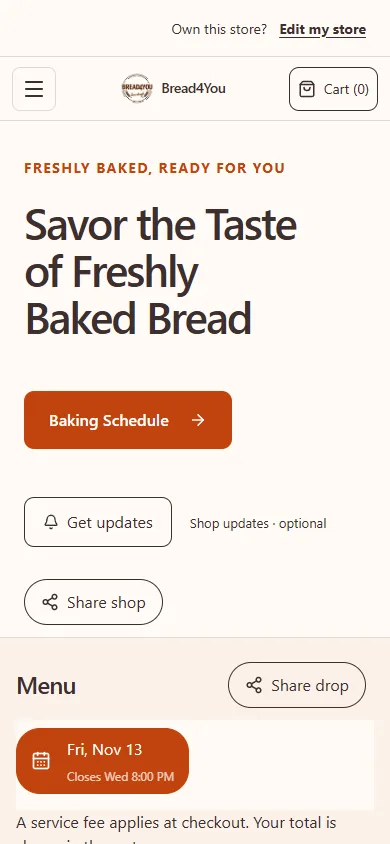
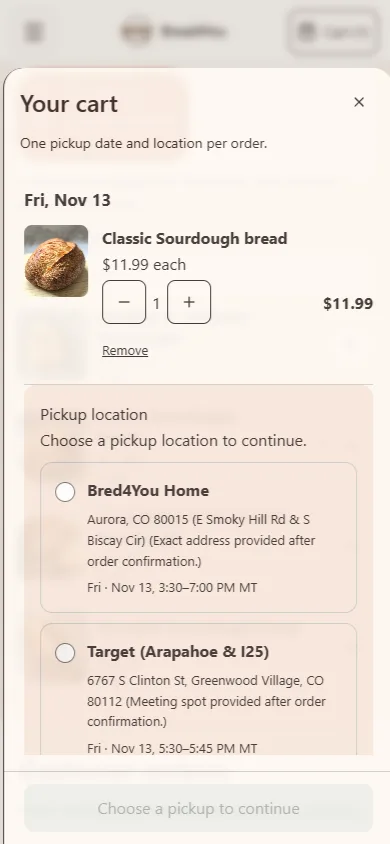
Here is an example using Bread4You’s real storefront, captured in November 2026. Its menu and dates can change.
1. Set up your shop
Create your shop and add the products you want to sell.
2. Plan your sale
Choose the available products, pickup details and order deadline.
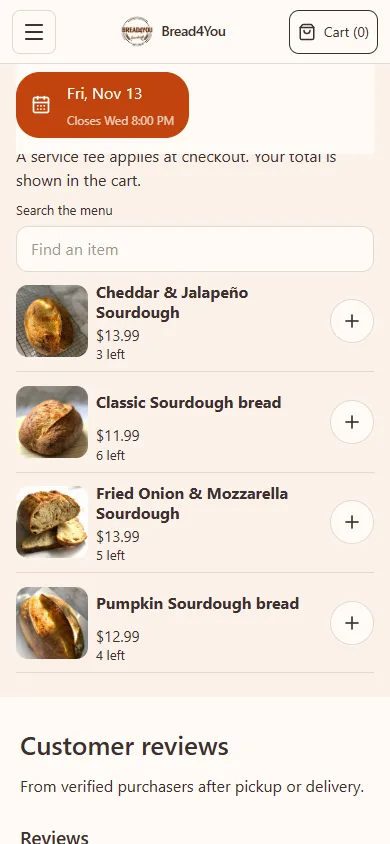
3. Share your menu
Share your public link so customers can choose their items and review pickup.
Choose the destination before changing your bio
For a bakery with a changing weekly menu, the main storefront is usually a useful starting point. It gives you one address to keep in your bio while you update the products and dates behind it. If your campaign concerns one particular sale, check any more specific shared link on a phone before using it.
Use the public store link from your sharing tools. Do not copy the address from a private dashboard or customer checkout. Those addresses may require a login or include private information. The destination should open for someone who has never signed in to your account.
Make sure there is something to order
A published page and an open sale are different things. Before sharing, confirm that the products you are promoting are available through the selling method you intend. For a scheduled pickup batch, review the bake date, assigned products, quantities, cutoff and active pickup options. A product saved only in your library is not yet a scheduled menu item.
If you use made-to-order products instead, review preparation notice, available fulfillment windows and capacity. A custom request is another path: the customer sends requirements, you review them and issue a quote. Do not describe that request as an immediately confirmed purchase.
For card orders in BakePorch, connect your own Square account, finish the card-payment setup and verify your owner email. Review the public ordering journey after publishing. A payment connection alone does not establish that the menu is ready.
Tell people what the link is for
Keep the bio useful rather than trying to fit the whole business into it. Say what you sell, the area you serve and what a customer should do next. In Instagram's profile editing tools, add the public storefront address to the profile's links and give it a clear label such as Order this week's menu. Menu labels can change, so check the current editing screen rather than relying on an old screenshot.
Copyable bio — replace the placeholders: [Business name] | [cookie boxes / sourdough / weekly bakes] Pickup in [area] on [usual pickup day]. See the current menu and available pickup times below.
- Name the actual pickup area, not a service area you do not offer.
- Use a real current cutoff in a sale caption rather than leaving an old deadline in a permanent bio.
- Use urgency only when there is an actual cutoff or quantity limit.
Check it as a customer on a phone
Open the profile link outside your owner session. Confirm that the advertised item can be found, the pack size and price make sense, and a customer can see or select the available pickup details. Check any public address disclosure against your chosen privacy settings.
Walk through the order to the final review without making a purchase unless you intend to place a real order. Check the displayed total, payment method and fulfillment details.
Repeat this check when you change the menu or close a sale. Keep captions and the storefront in agreement so an interested customer does not arrive at yesterday's offer.
Keep DMs for the questions that need you
You can still answer an allergy question, discuss a genuinely custom request or help someone find a pickup option. The order link handles the repeatable information; it does not require pretending every conversation can be automated. When someone asks how to order, give the same clear instruction you use in the bio.
BakePorch provides a storefront link for scheduled batches, made-to-order products and custom quotes. It has no monthly subscription; a small charge applies to card orders, and Square processing is separate. A profile link does not promise reach or customers. Judge it by customers completing orders, not link taps alone.
What does it cost?
Free to start, with no monthly fee. A small service fee is added at customer checkout. Payments go to your own Square account.
The customer pays the BakePorch fee by default, or you can choose to cover it. Your business pays Square processing separately. See pricing and examples.
Who is it for?
Home bakers, cottage food sellers, meal-prep businesses and other home cooks can use drops, made-to-order menus and custom requests to organize their sales. Choose the approach that fits your business and check the food rules that apply to you.
Questions sellers ask
Do I need a separate website for every weekly menu?
No. Keep your public storefront link in the bio and update the menu and availability behind it. Check that an old caption does not promise an expired sale.
Is this an Instagram checkout integration?
This guide describes linking from your Instagram profile to a customer-facing storefront. It does not promise Instagram shopping tags, automatic DM replies or payment inside Instagram.
How much is the fee?
The standard BakePorch service fee is 5% of the order subtotal, including delivery charges where applicable. By default the customer pays it, or you can choose to cover it. Square processing fees are separate and are paid by your business.
Is there a free app I can make for my shop?
BakePorch is free to start with no monthly fee. Card orders have a service fee and your business pays Square processing separately.
Can I offer different pickup locations?
Yes. Add locations and choose the pickup options available for your sale. Check that the right dates, times and locations appear before sharing your link.
Can I offer custom orders?
Yes. Customers can send a request for you to review. You can then offer a quote for the customer to accept and pay.
More practical guides
Ready to take your next order?
Build your menu and review your store before publishing.
Start free